7. Source Code Panel Details
In the source code panel you can write the code portions of your low-code page.
Panel breakdown
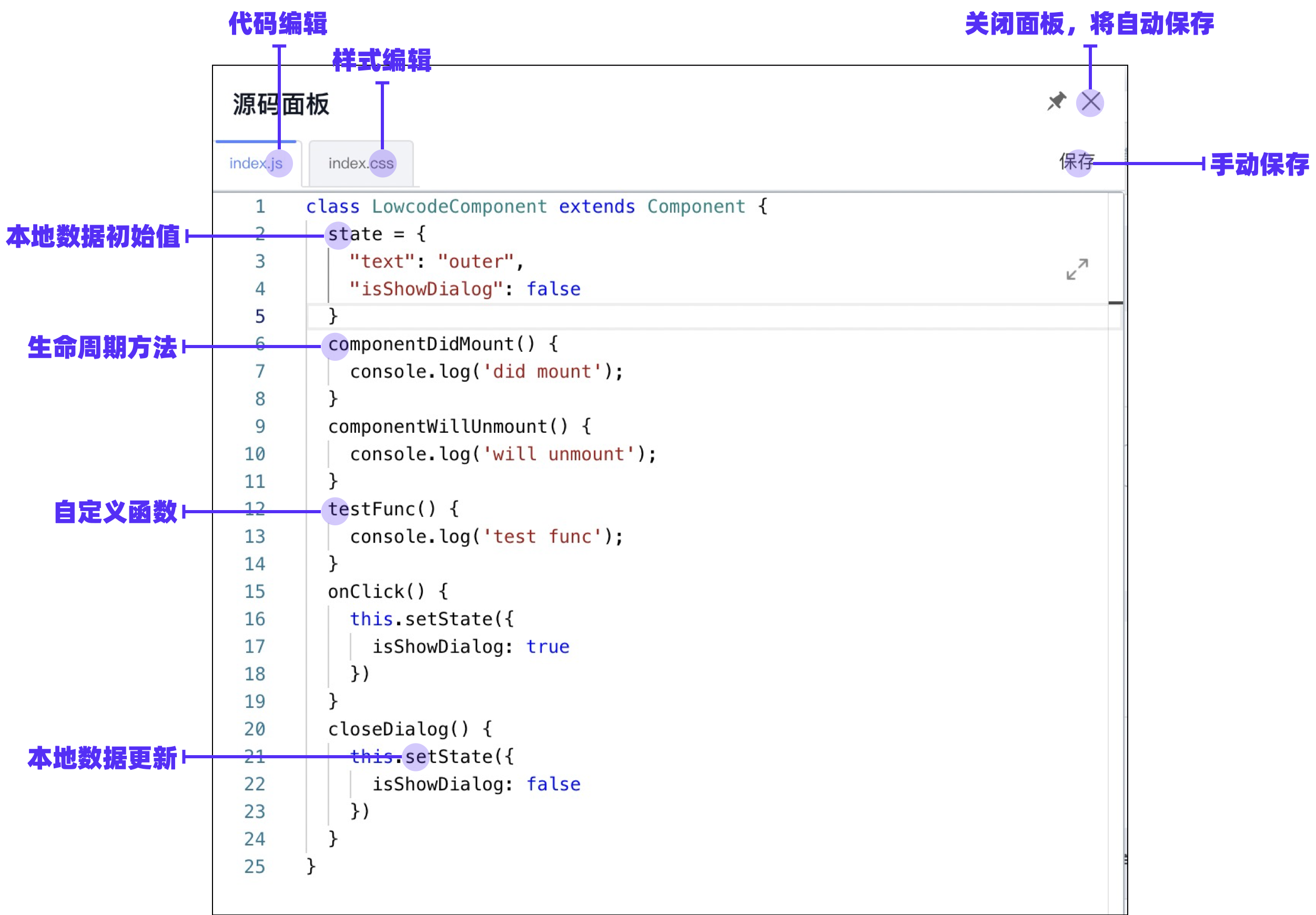
Code editor
Write JavaScript with JSX support. With Babel, JSX and Chrome 80+ syntax are compiled automatically:
| Before compile | After compile |
|---|---|
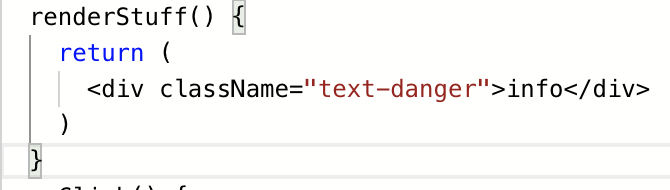 |  |
 |  |
Note:
@babel/runtimecurrently interferes with compile output, soasync/awaitand spread like{ ...arr }are not supported in the panel. CompileoriginCodeyourself with Babel after reading the schema if you need those features.
Global references
Reference globals via window. Asset packages are UMD bundles—for example, with Fusion Next (default in the Demo):
window.Next.Message.success('Success');

Local references
Inside member functions you can use:
this.statethis.setStatethis.context.appHelper.utilsthis.context.appHelper.constantsthis.context.appHelper.requestHandlerMapthis.context.components
Read, write, and errors
- Read: on open, loads
originCodefrom the schema, or reconstructs code from schema fields - Write: on close (X or click outside) code is saved to the schema; use Save while editing to save manually
| In source panel | In Schema |
|---|---|
Local state init: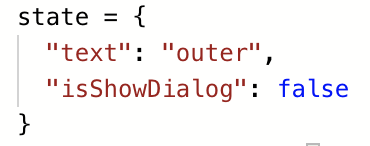 | 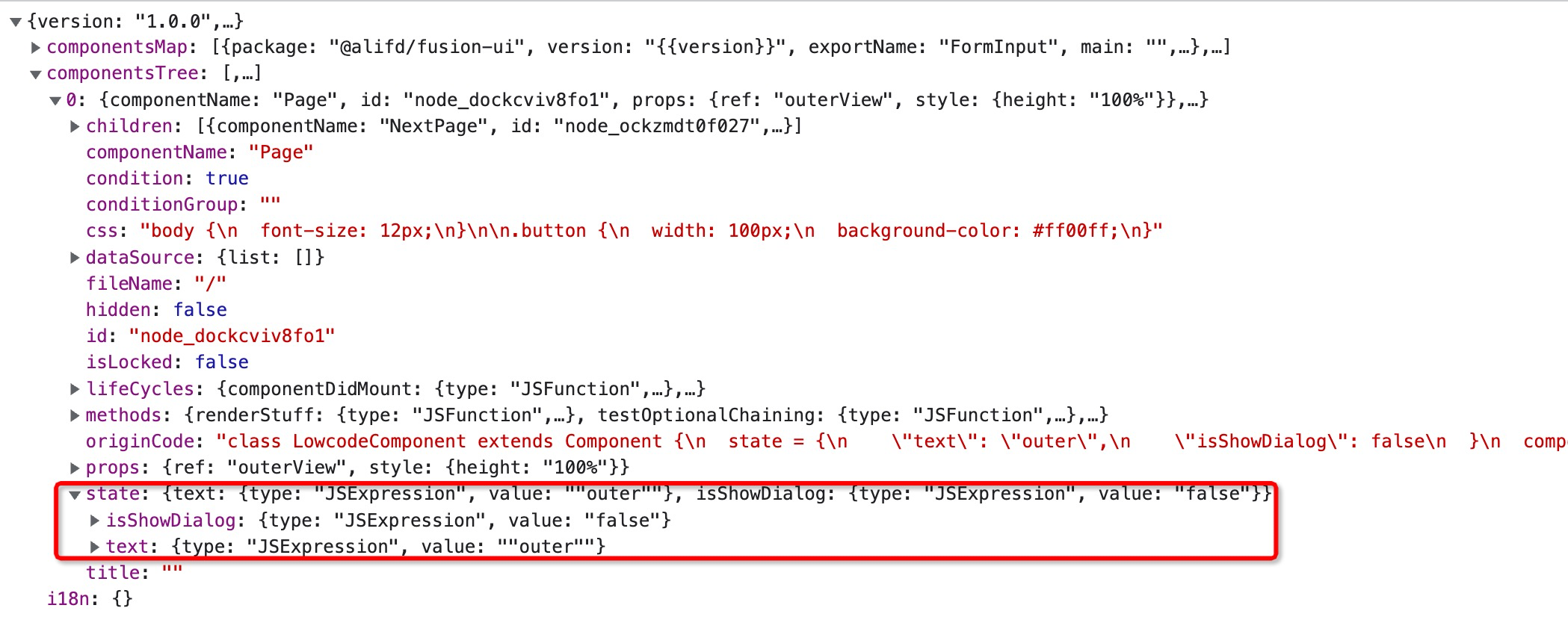 |
Lifecycle methods: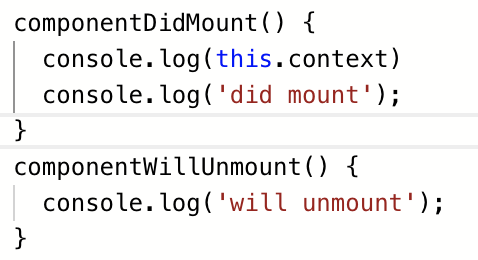 | 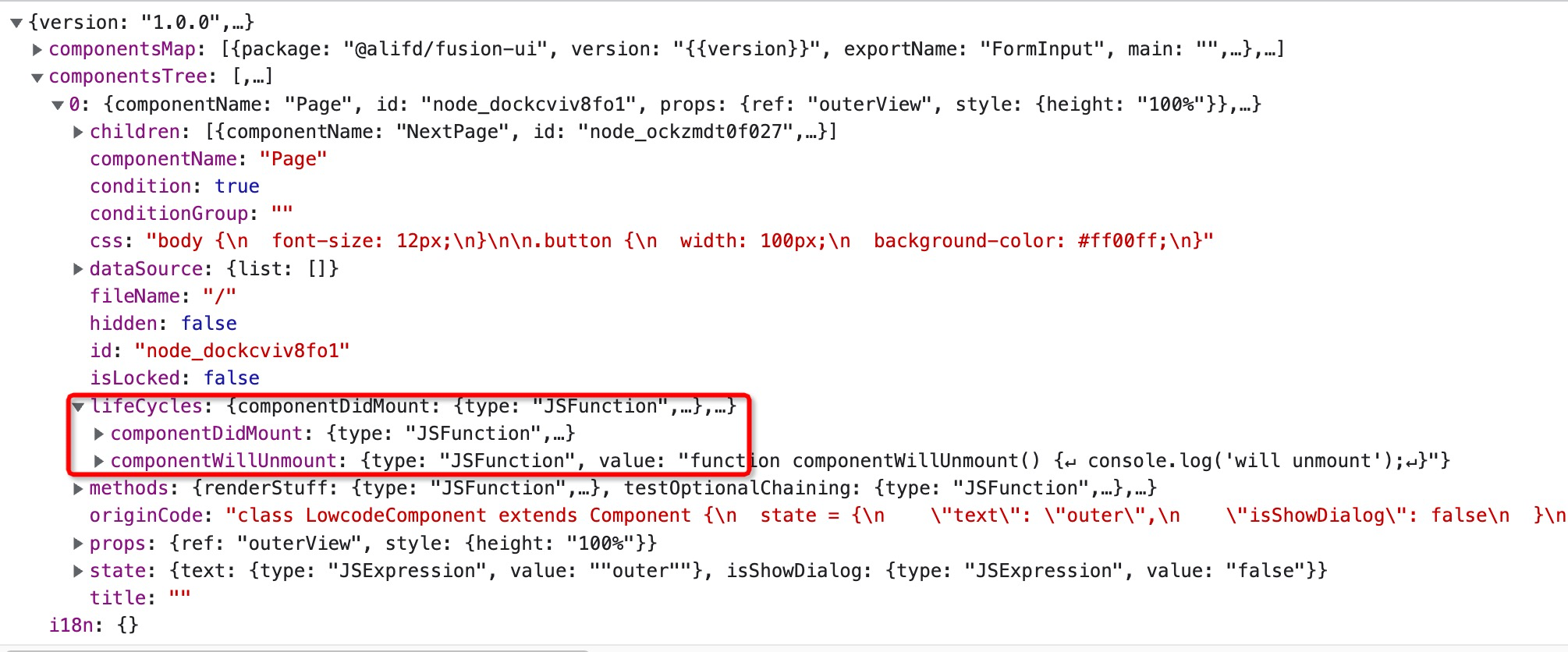 |
Custom methods: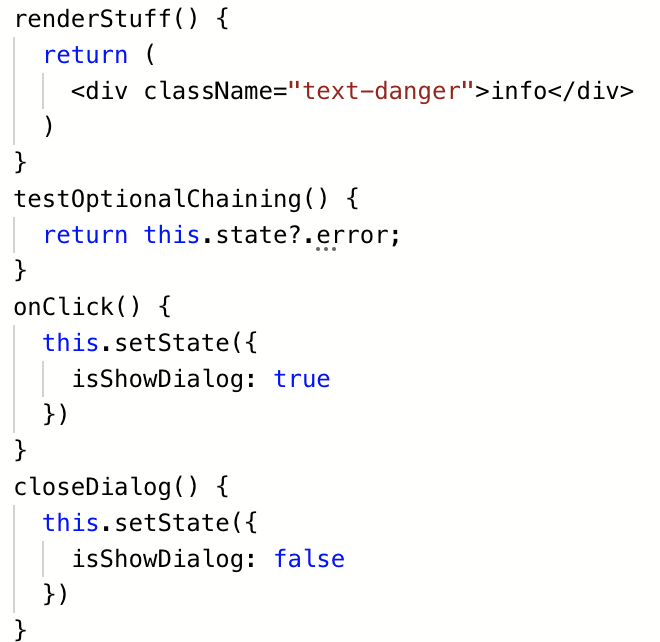 |  |
Full source before compile: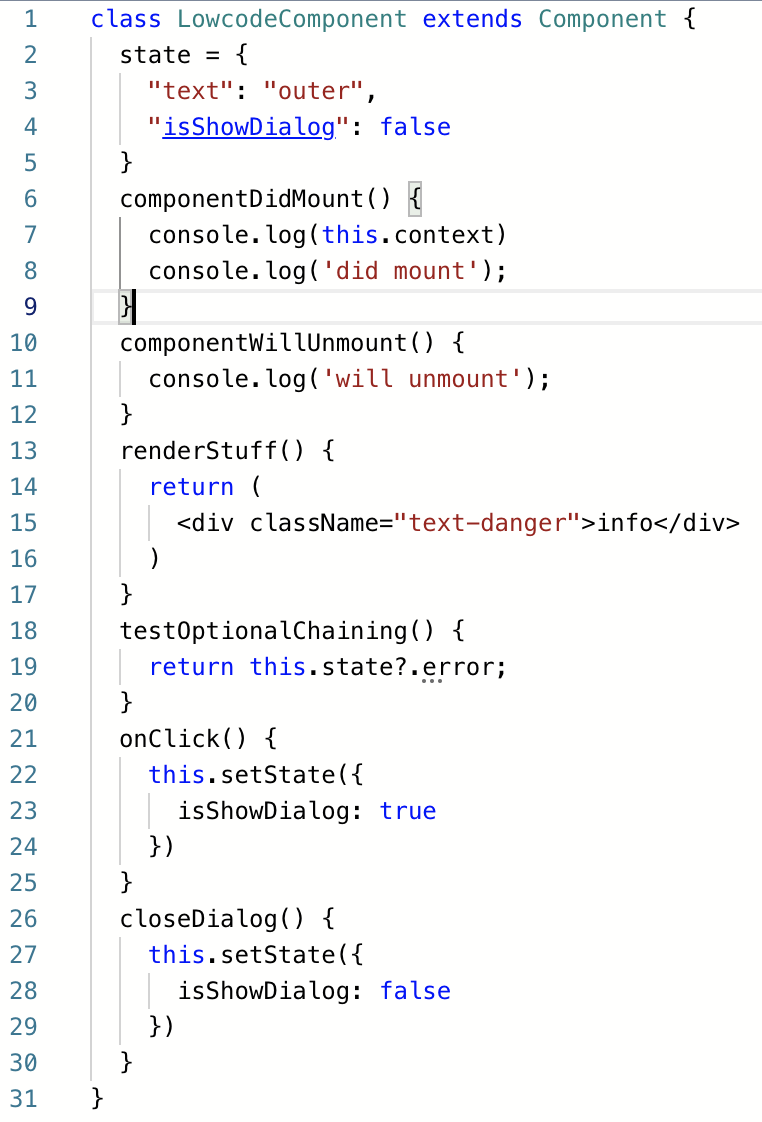 |  |
- Errors: if parsing fails, code is not saved and the editor shows an error dialog:

Style editor
Write CSS here. It maps to the css field on the schema:
| In source panel | In Schema |
|---|---|
 |  |
Wiring code to the UI
Lifecycle
View lifecycle methods run at the corresponding render phases. Supported methods are defined in the Alibaba mid/back-end frontend schema spec:
{
  componentDidMount(): void;
  constructor(props: Record<string, any>, context: any);
  render(): void;
  componentDidUpdate(prevProps: Record<string, any>, prevState: Record<string, any>, snapshot: Record<string, any>): void;
  componentWillUnmount(): void;
  componentDidCatch(error: Error, info: any): void;
}
Settings panel integration
After defining functions or state, wire them in the right-hand settings panel.
Code is typically used for variable binding, event callbacks, conditions, and loops.
Variable binding
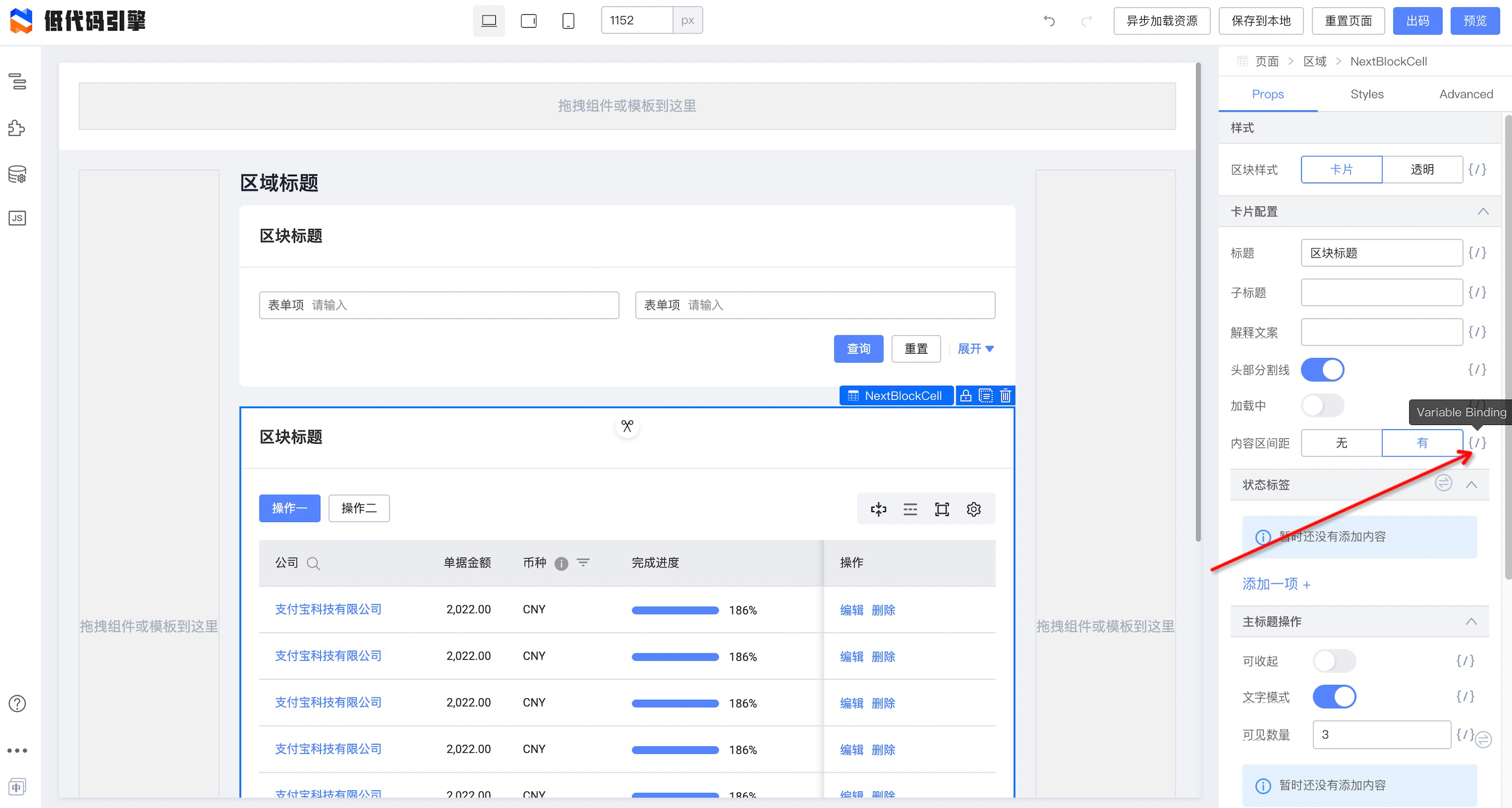
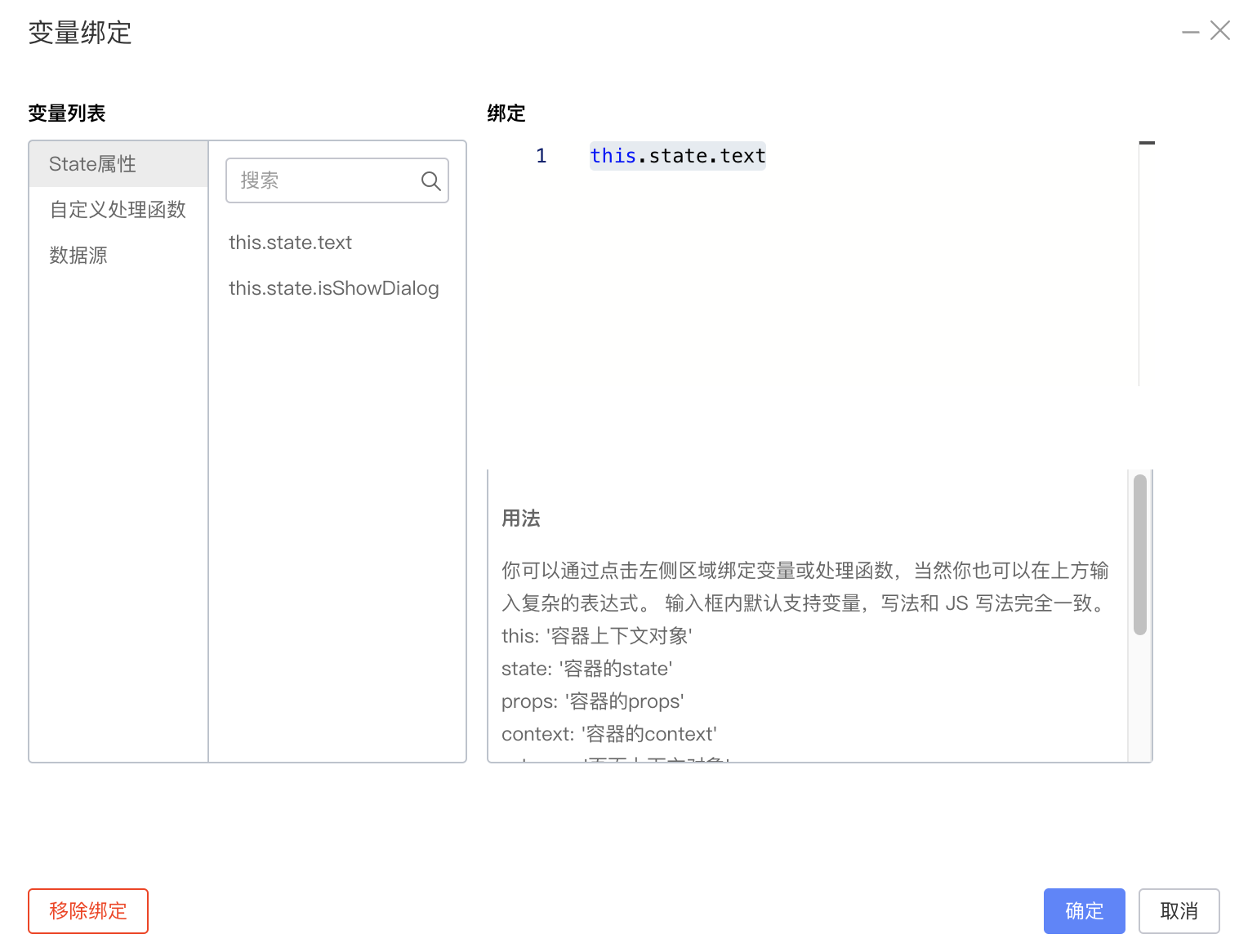
{
  "componentName": "NextBlockCell",
  "id": "node_ockzmje8tf5",
  "props": {
    "bodyPadding": {
      "type": "JSExpression",
      "value": "this.state.text",
      "mock": ""
    }
  }
}
Event callbacks
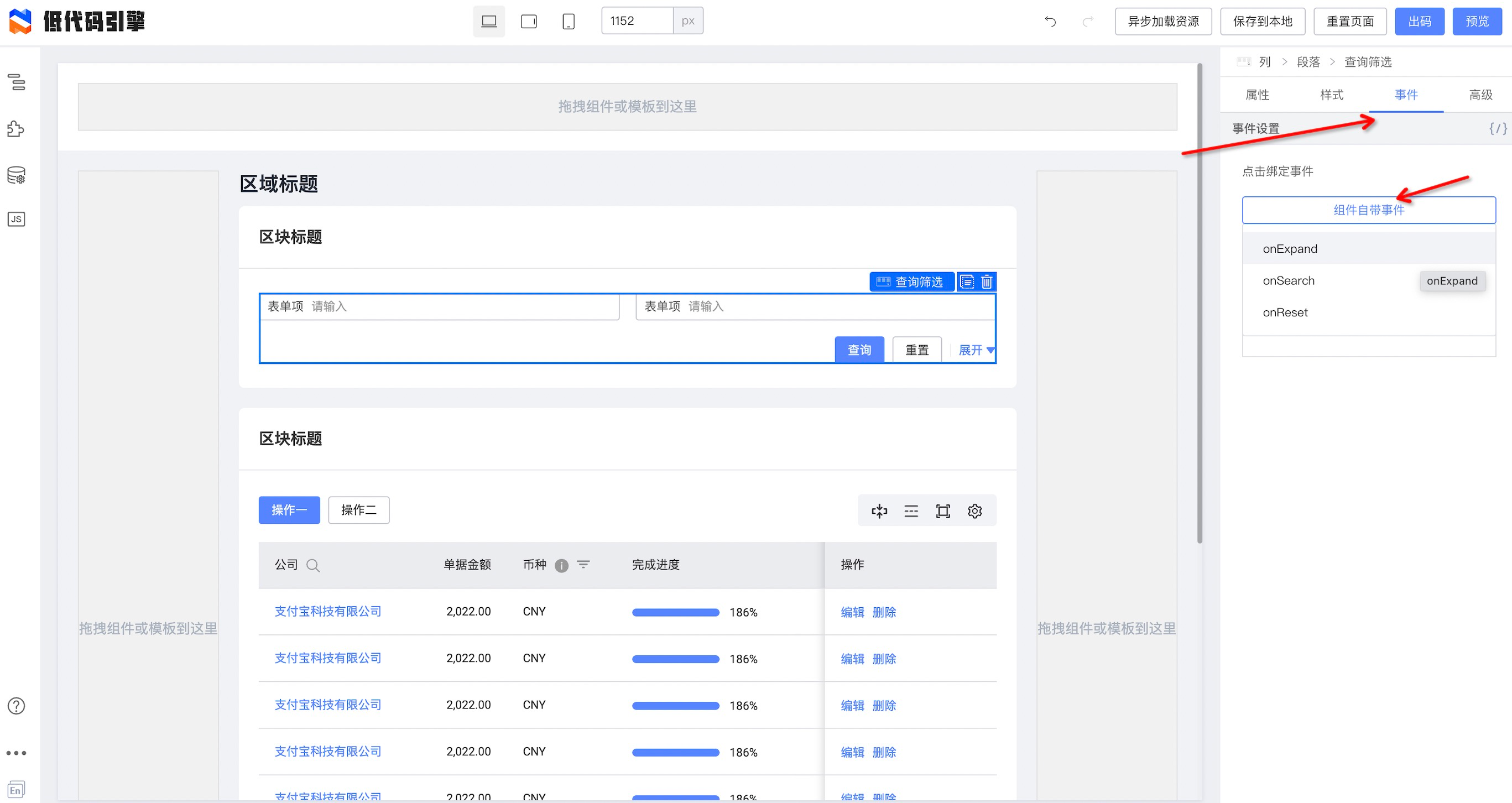
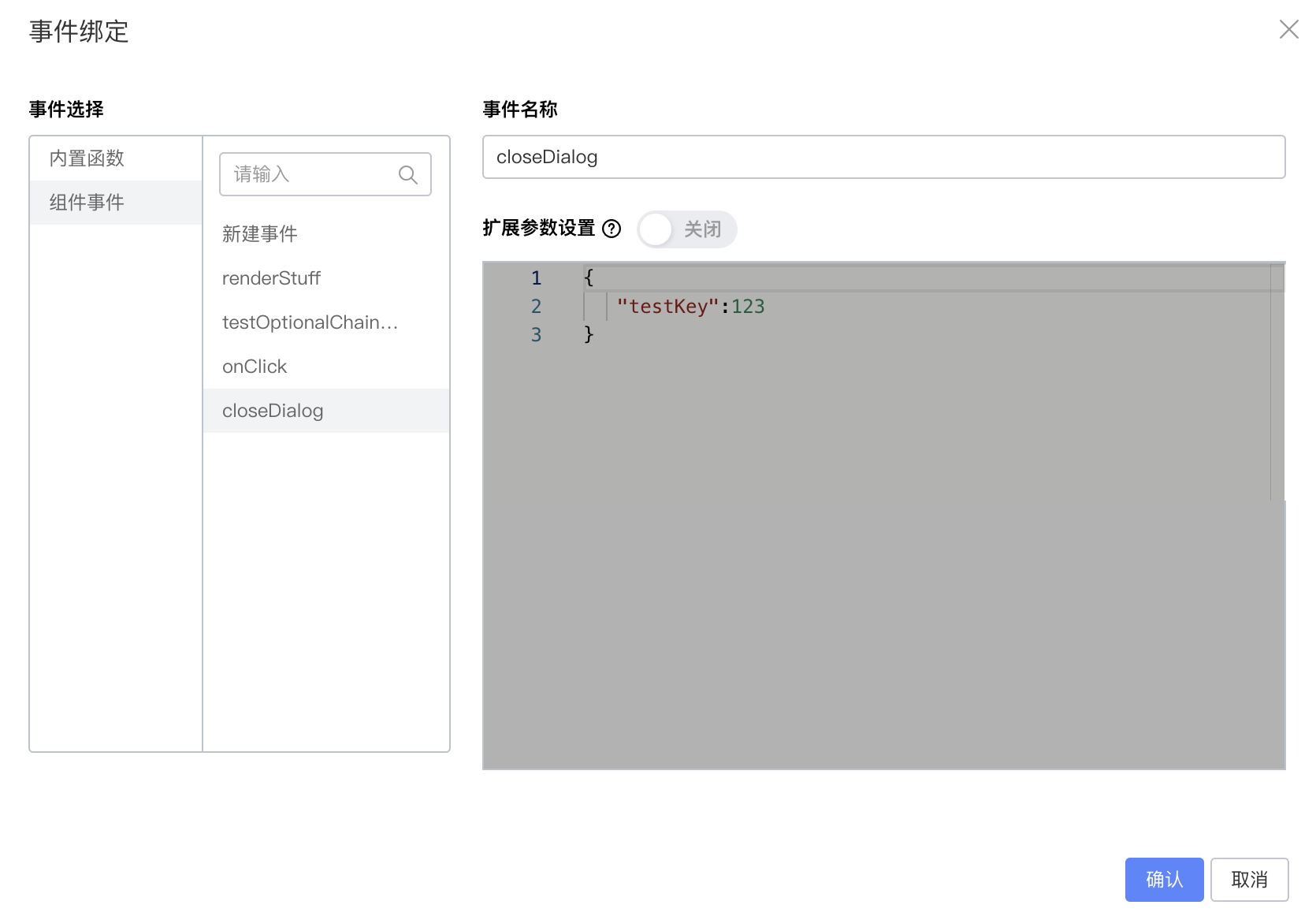
{
  "componentName": "Filter",
  "id": "node_ockzmj0cl11w",
  "props": {
    "__events": {
      "eventDataList": [
        {
          "type": "componentEvent",
          "name": "onSearch",
          "relatedEventName": "closeDialog"
        }
      ]
    },
    "onSearch": {
      "type": "JSFunction",
      "value": "function(){this.onSearch.apply(this,Array.prototype.slice.call(arguments).concat([])) }"
    }
  }
}
Conditional rendering

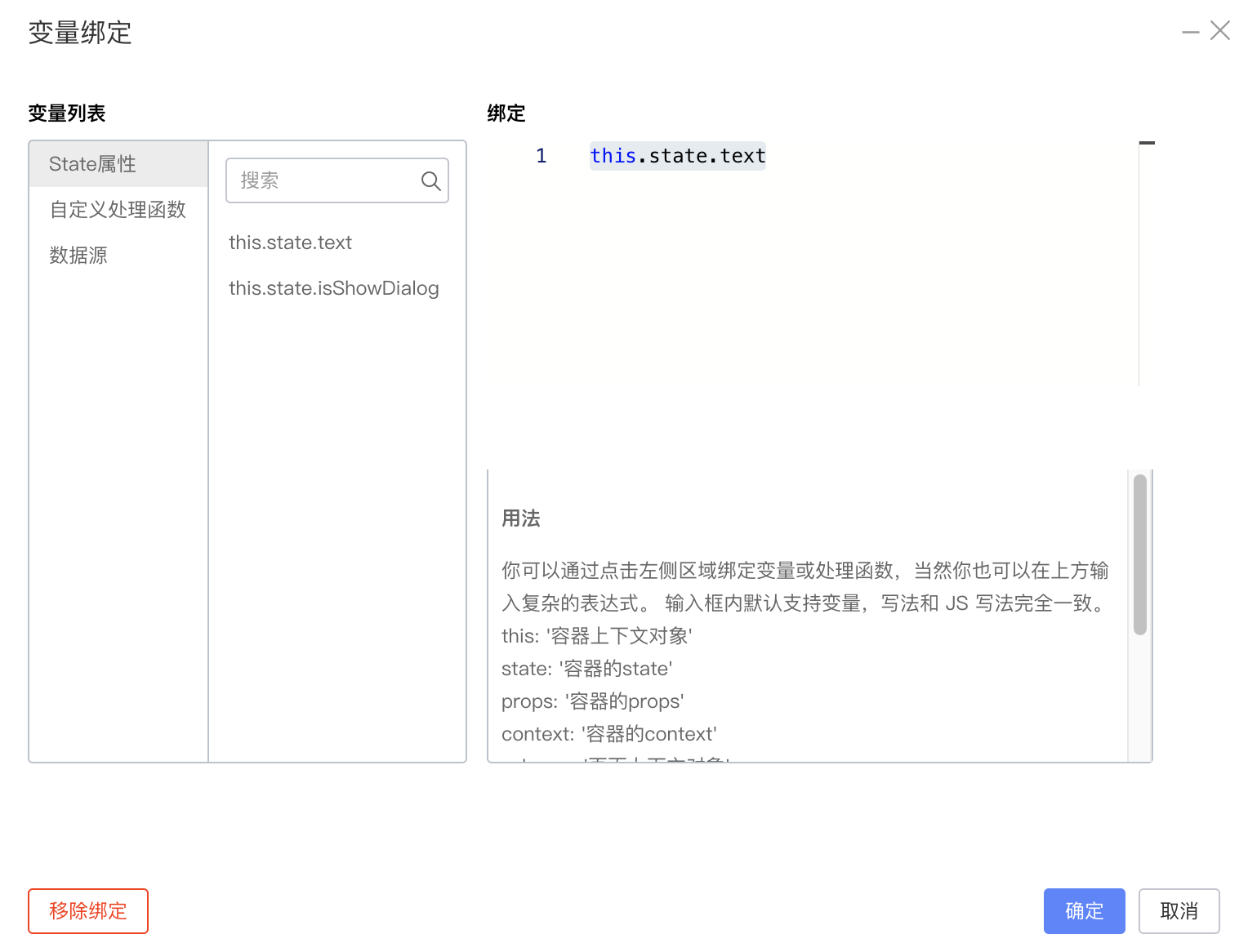
{
  "componentName": "Filter",
  "id": "node_ockzmj0cl11w",
  "condition": {
    "type": "JSExpression",
    "value": "this.state.text",
    "mock": true
  }
}
Loop
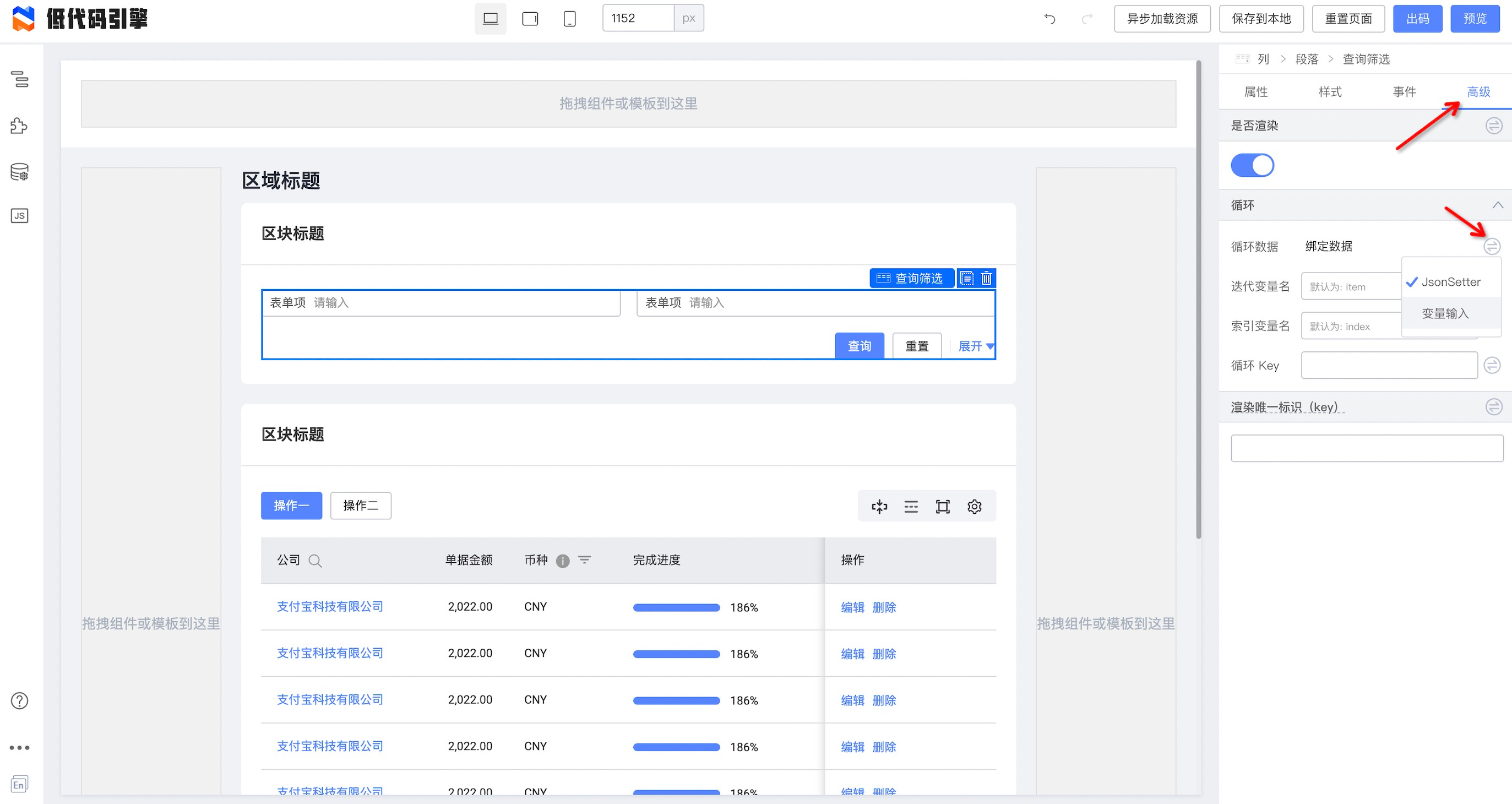
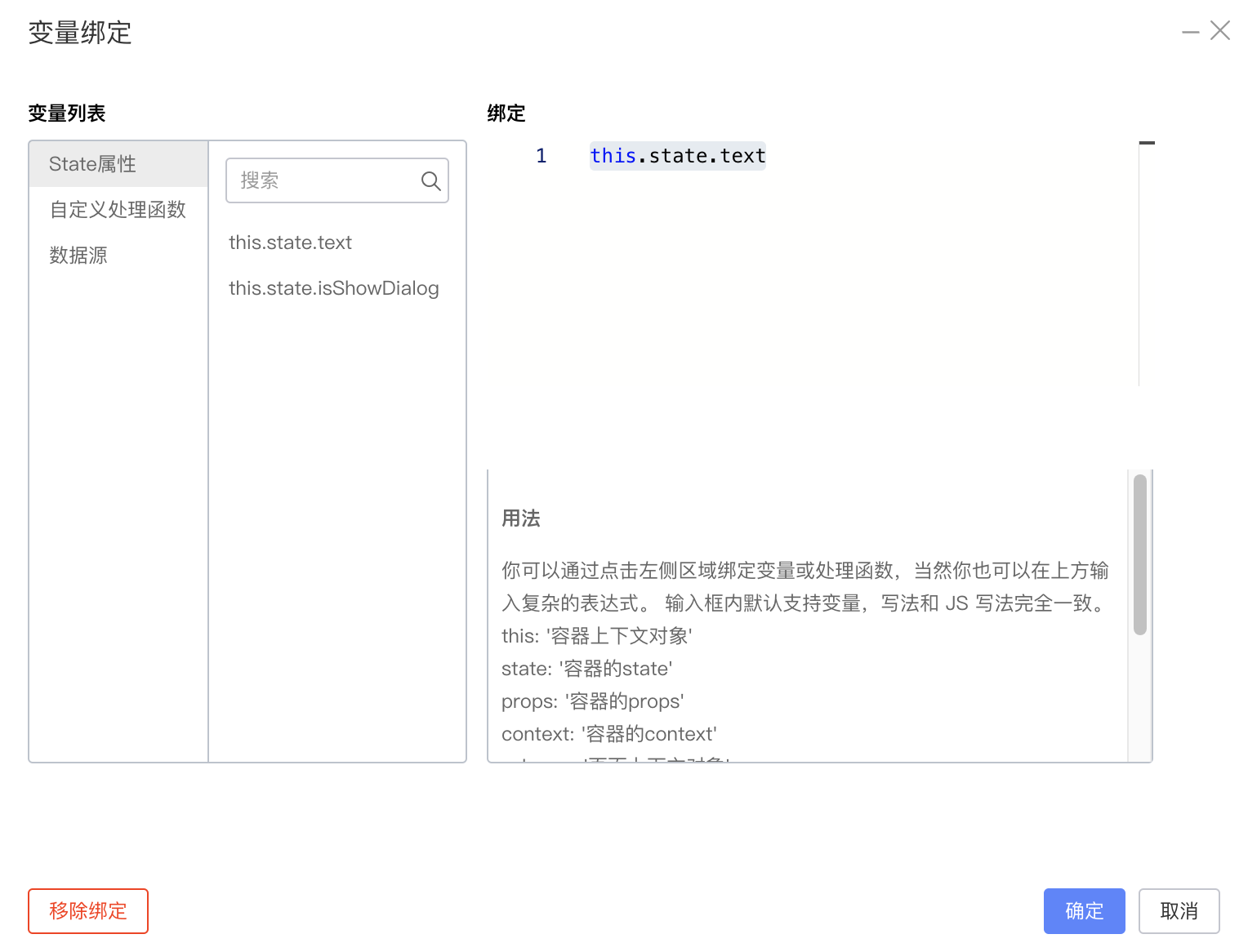
{
  "componentName": "Filter",
  "id": "node_ockzmj0cl11w",
  "loop": {
    "type": "JSExpression",
    "value": "this.state.text",
    "mock": true
  }
}