Low-Code Ecosystem Scaffolding & Debug Mechanism
Scaffolding Overview
After forking the low-code editor demo project, you can extend the low-code editor directly in the project. If you want to package your components/plugins/setters as independent npm packages for the community, you can use our low-code scaffolding to create low-code extensions.
Windows developers should use development tools in a WSL environment.
WSL documentation: https://docs.microsoft.com/zh-cn/windows/wsl/install
Chinese tutorial: https://blog.csdn.net/weixin_45027467/article/details/106862520
Scaffolding Features
Scaffolding Initialization
npm init @rchh/element your-element-name
If you omit your-element-name, the project is created in the current directory.
Note 1: If you see the error
sh: create-element: command not found, run the following first:
npm install -g @rchh/create-element
Note 2: If installation is slow, you can set an npm mirror, e.g.:
npm init @rchh/element your-element-name --registry=https://registry.npmmirror.com
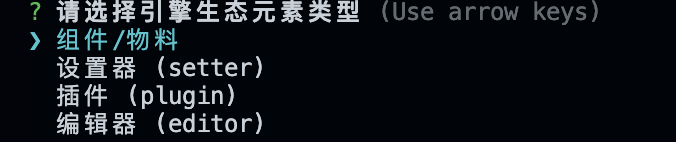
Select the corresponding element type and fill in the prompts to complete creation.
Local Scaffolding Debug
cd your-element-name
npm install
npm start
Scaffolding Build
npm run build
Scaffolding Publish
After updating the version number, run:
npm publish
🔥🔥🔥 Debugging Materials/Plugins/Setters in a Low-Code Project
📢📢📢 The debug tool provided by the low-code ecosystem scaffolding lets you debug directly on an existing low-code platform after starting a setter/plugin/material project—no npm link or manually changing npm main entry required. Easy to get started; highly recommended!!
Component/Plugin/Setter Side
- Add debug configuration to the existing alt config for plugins/setters
// In build.json
{
  "plugins": [
    [
      "@rchh/build-plugin-alt",
      {
        "type": "plugin",
        "inject": true, // Enable inject debugging
        // Page to open; in inject debug mode the browser will not open if omitted
        // You can point at the official demo: https://lowcode-engine.cn/demo/index.html
        "openUrl": "https://lowcode-engine.cn/demo/index.html?debug"
      }
    ]
  ]
}
- For components, first install
@rchh/build-plugin-alt, then modify the component'sbuild.lowcode.jsas follows:
const { library } = require('./build.json');

module.exports = {
  alias: {
    '@': './src',
  },
  plugins: [
    [
      // lowcode config stays unchanged; shown here for illustration only.
      '@alifd/build-plugin-lowcode',
      {
        library,
        engineScope: '@alilc',
      },
    ],
    [
      '@rchh/build-plugin-alt',
      {
        type: 'component',
        inject: true,
        library,
        // Page to open; in inject debug mode the browser will not open if omitted
        // You can point at the official demo: https://lowcode-engine.cn/demo/index.html
        openUrl: 'https://lowcode-engine.cn/demo/index.html?debug',
      },
    ],
  ],
};
- Start local component/plugin/setter debugging normally. Add
debugto the project URL to enable inject debugging.
https://lowcode-engine.cn/demo/demo-general/index.html?debug
Project-Side Preparation
If your low-code project is forked from the official demo, project-side preparation is already done—you can skip the rest.
- Install
@rchh/lowcode-plugin-inject
npm i @rchh/lowcode-plugin-inject --save-dev
- Register the plugin during engine initialization
import Inject, { injectAssets } from '@rchh/lowcode-plugin-inject';
import { IPublicModelPluginContext } from '@rchh/lowcode-types';

export default async () => {
  // Note: the Inject plugin must register before other plugins, and all plugin registration must be awaited
  await plugins.register(Inject);
  await plugins.register(OtherPlugin);
  await plugins.register((ctx: IPublicModelPluginContext) => {
    return {
      name: 'editor-init',
      async init() {
        // Before setting material descriptions, process them with injectAssets from the plugin
        const { material, project } = ctx;
        material.setAssets(await injectAssets(assets));
      },
    };
  });
};
- Filter out injected URLs when saving schema to avoid affecting the render state
import { filterPackages } from '@rchh/lowcode-plugin-inject';
export const saveSchema = async () => {
  // ...
  const packages = await filterPackages(editor.get('assets').packages);
  window.localStorage.setItem('packages', JSON.stringify(packages));
  // ...
};
- If you want the preview state to also inject debug components, insert components in the preview logic
import { injectComponents } from '@rchh/lowcode-plugin-inject';

async function init() {
  // Before passing to ReactRenderer, process with injectComponents
  const components = await injectComponents(buildComponents(libraryMap, componentsMap));
  // ...
}
Note: If the console shows the following error, visit the URL once directly.

Meta Information
Meta information is a small JSON block in the ecosystem element's package.json. Users can learn basic information about the element through meta, such as element type and entry information.
interface LcMeta {
  type: 'plugin' | 'setter' | 'component'; // element type; not implemented yet
  pluginName: string; // plugin name; plugins only
  meta: {
    dependencies: string[]; // dependent plugins; plugins only
    engines: {
      lowcodeEngine: string; // compatible engine version
    };
    prototype: string; // material description entry; components only; not implemented yet
    prototypeView: string; // material design-time entry; components only; not implemented yet
  };
}